Print your Word document as a book
Set the page size, margins and page numbers in Word, save a PDF and upload it. The same works from Google Docs.
Read the steps- Paperback, hardcover or spiral book
- From one copy, no account
- We check your PDF right away
- Save as type
- PDF (*.pdf)
- Optimize for
- Standard
- Page range
- All
- PDF/A compliant
- On
- Document structure tags
- On
- Your PDF
- Checked before you pay
 Printed and delivered
Books you can make from Word
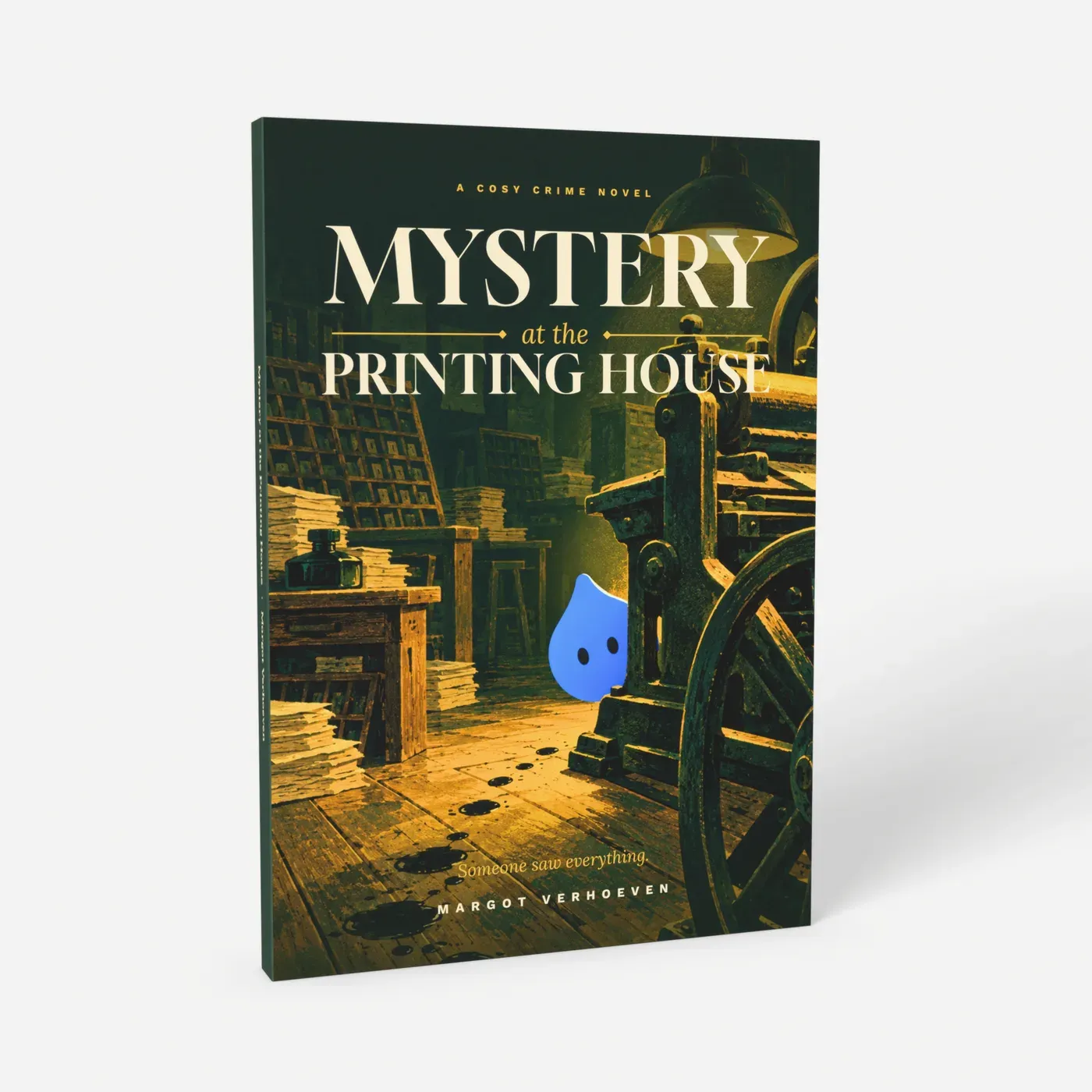
Softcover, 24 to 200 pages. The usual choice for a novel.
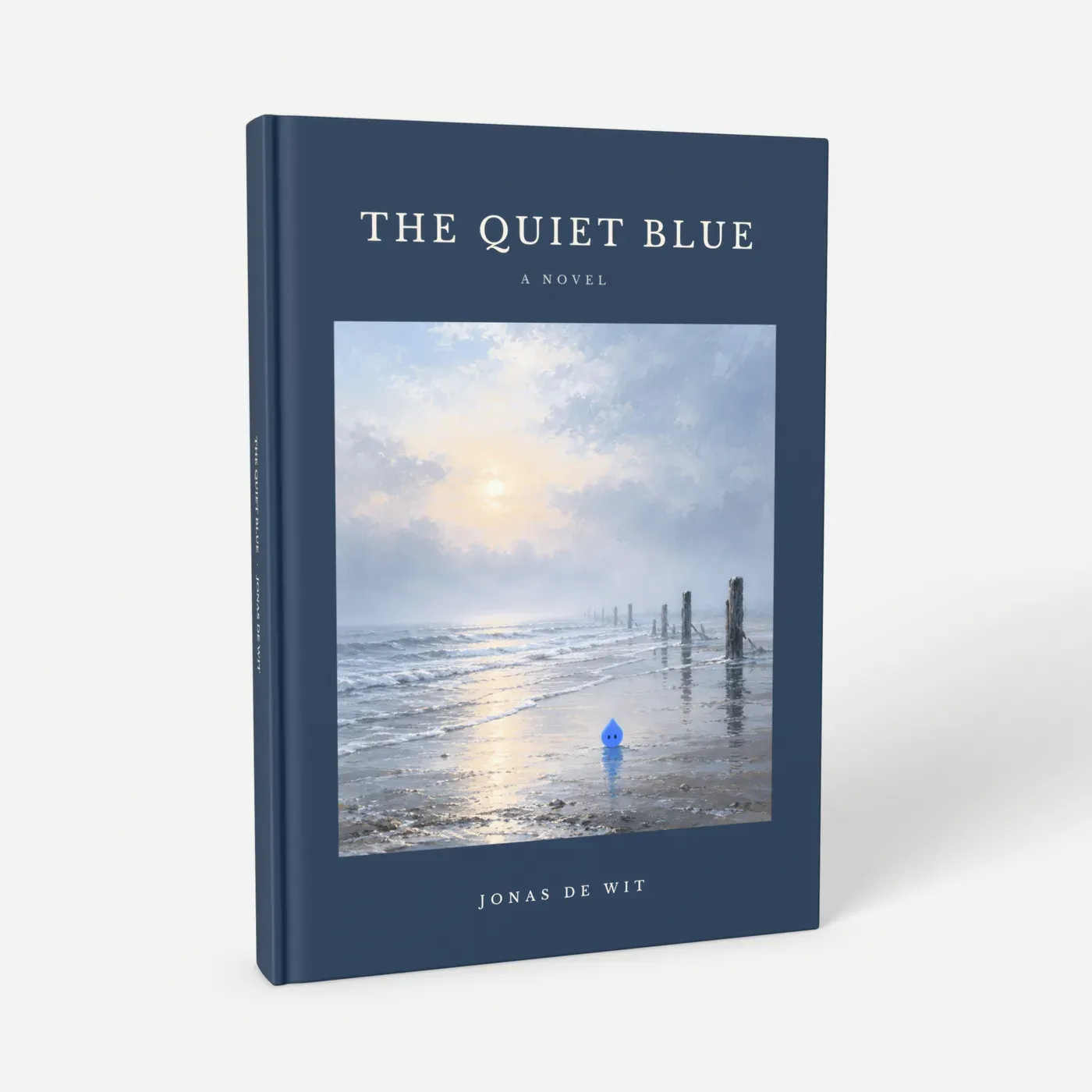
Rigid board cover, up to 400 pages: for a thesis or a gift.
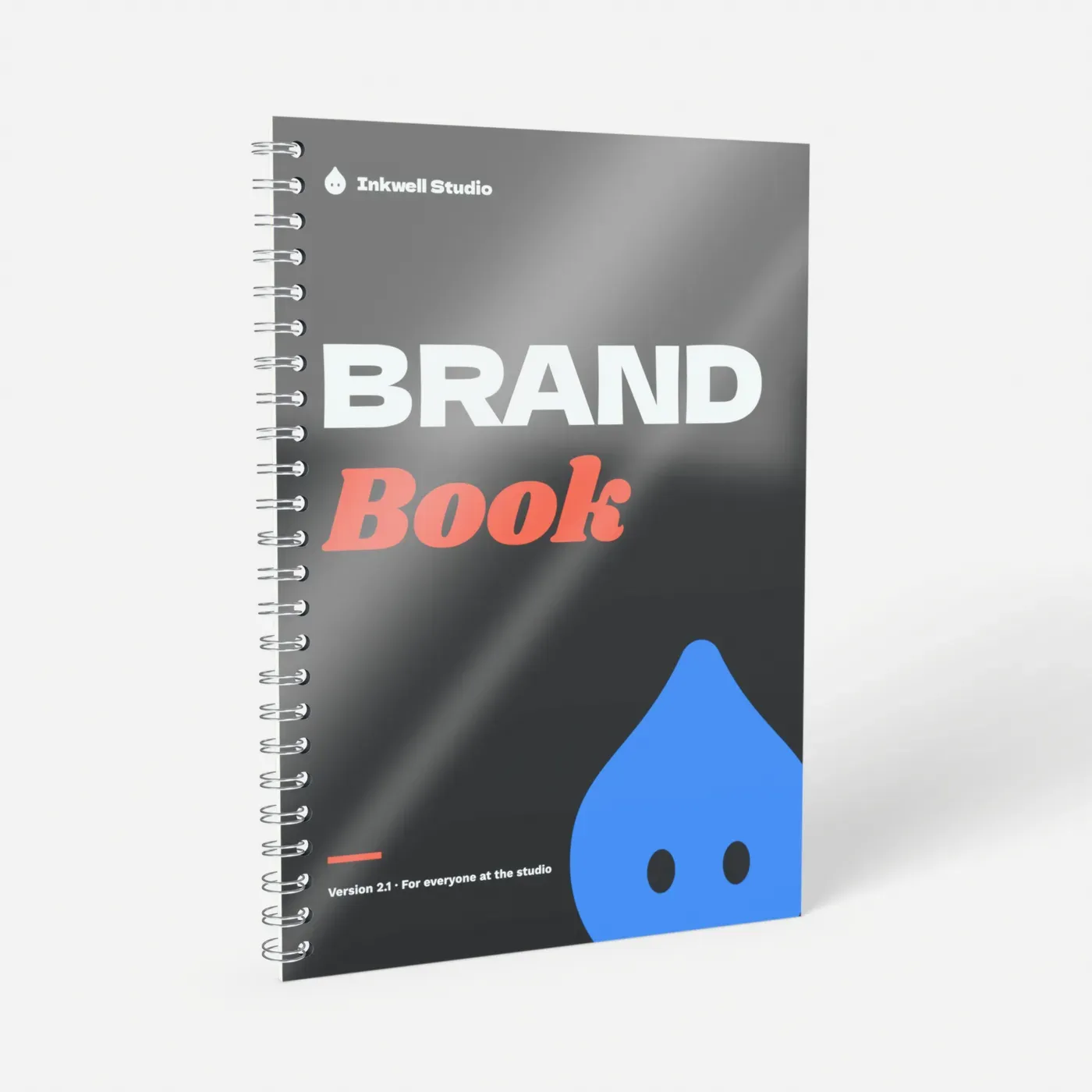
Lies flat. No cover file: your first and last page.
Everything we print: books, wall art, mugs, calendars and more.
Word settings for a printed book
Menu names from Word for Windows (Microsoft 365). Word for Mac has the same options, sometimes in a different place.
- 1
Page size
Layout > Size > More Paper Sizes: your book size plus 3 mm bleed on every side, so 15.4 × 21.6 cm for A5 and 21.6 × 30.3 cm for A4. Do this first, or every page break moves later. Choosing a size: see A5 book printing.
- 2
Mirror margins
Layout > Margins > Custom Margins, Multiple pages: Mirror margins. Don't choose Book fold: it imposes pages for home printing, and we need single pages in reading order. For A5, start with 23 mm top and bottom, 25 mm inside and 18 mm outside (bleed included).
- 3
Sections
At the end of the last page without a number (title page, contents): Layout > Breaks > Section Breaks > Next Page. To start chapters on a right-hand page, use Section Breaks > Odd Page.
- 4
Page numbers
In the footer of the first numbered page: Insert > Page Number. In the Header & Footer tab turn off Link to Previous, and use Page Number > Format Page Numbers to start at 1.
- 5
Sharp images
File > Options > Advanced, under Image Size and Quality: tick Do not compress images in file and set the default resolution to High fidelity. Then insert your photos again from the originals.
- 6
Embedded fonts
File > Options > Save: tick Embed fonts in the file.
- 7
Save as PDF
File > Save As, type PDF, Optimize for: Standard. Under Options tick PDF/A compliant, so every font is in the file. On a Mac: File > Save As, file format PDF, Best for printing.
Margins and font size per format
Measured on the trimmed page. In Word, add 3 mm to each margin for the bleed.
A5 paperback
- Inside
- 22 mm
- Outside
- 15 mm
- Top / bottom
- 20 mm
- Body text
- 10.5-11.5 pt
A5, over 200 pages (hardcover)
- Inside
- 25 mm
- Outside
- 15 mm
- Top / bottom
- 20 mm
- Body text
- 10.5-11.5 pt
A4 thesis or report
- Inside
- 25 mm
- Outside
- 20 mm
- Top / bottom
- 25 mm
- Body text
- 11-12 pt
Spiral book A4
- Inside
- 25 mm
- Outside
- 15 mm
- Top / bottom
- 20 mm
- Body text
- 11-12 pt
In a spiral book the holes are punched in the inside margin: keep it free of text.
Google Docs
File > Page setup > Pages: paper size A5 or A4. Google Docs has no mirror margins or bleed, so use the same, slightly wider margin on both sides, for example 20 mm on A5. We enlarge the page by about 4% to fill the bleed; the preview shows where it's cut.
Page numbers: Insert > Page numbers, with Show on first page unticked. Then File > Download > PDF Document (.pdf); the fonts are included.
The cover is a separate file
A paperback or hardcover needs a cover PDF with back, spine and front side by side. The product page gives the size for your page count; make it in Canva or another design tool. A spiral book needs no cover file: the first and last page of your PDF are the covers.
Typesetting tips
Hyphenation
Justified text in a narrow A5 column needs Layout > Hyphenation > Automatic, or you get wide gaps.
Indents instead of blank lines
Set a first line indent of about 5 mm and spacing before and after to 0.
An even page count
If your last page is odd, we add a blank page at the end.
Check the PDF, not the Word file
Scroll through it once. Working in InDesign or Affinity? See how to make a print-ready PDF.
How it works
Upload your file
Choose a product, a size and options, and add your PDF or photo. We check it right away and show you a preview, before you pay.
We print it
We print your order in the Netherlands on the paper or material you chose, from a single piece. No minimum order, no account needed.
We bring it to your door
We ship it to every country of the EU, with tracking. The checkout shows the delivery date for your address.
Questions
Does my Word book need bleed?
How do I start page numbers on page 3?
Can I print my A4 document as an A5 book?
What does a book from Word cost?
More ideas and guides
All ideas and guidesA5 book printing
A5 book printing from one copy: paperback, hardcover, spiral or layflat. A5 next to trade sizes, font sizes, page counts and setting up your PDF.
How to make a print-ready PDF
Make a print-ready PDF: trim size, 3 mm bleed, PDF/X-4, no printer's marks, single pages and a cover spread with the right spine. InDesign, Affinity and more.
Paperback or hardcover: which one fits your book?
Paperback vs hardcover: page counts, paper choice, cover files and example prices at the same size. Both printed from your PDF, from a single copy.
Print one copy of a book
Print one copy of a book: a proof, a gift or your thesis. No minimum order and no account. See the price right away and a preview before you pay.
Print your Canva design as a poster, book or calendar
Print a Canva design as a poster, book, magazine or calendar: the page size to type, print bleed, the PDF Print settings and a book cover with spine.
Print your own recipe book
Recipe book printing from one copy: a spiral book that lies flat in the kitchen, a paperback or a hardcover. With page counts, layout tips and a template.
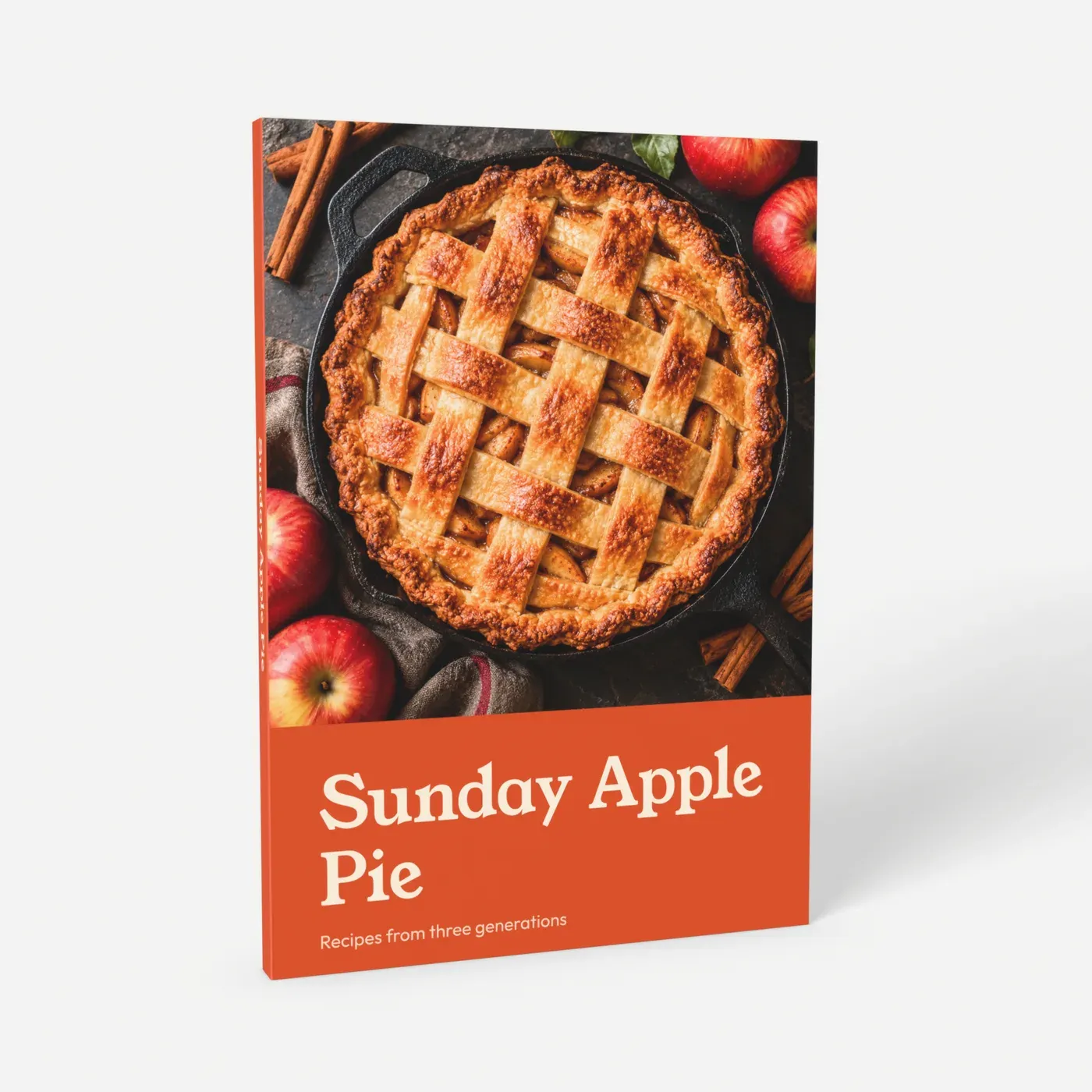
Turn your document into a book
Choose a book, upload your PDF and see the preview and price right away.